MetaTrader 5 is one of the most popular trading platforms due to its advanced trading tools that make trading more efficient. While it is easy for experienced MT5 traders to navigate profit and loss and manage positions on the MT5 platform, it might seem complex for beginners.
The data might be right there, but the platform's depth can be confusing at times. MetaTrader 5 shows your floating P/L live in the Trade tab inside the Toolbox panel, updating automatically with every price tick.
We will cover every method for viewing, customizing, and acting on real-time profit and loss in MT5, from the basics to chart-based Expert Advisor displays.
Key Takeaways
- To show real-time profit/loss in MT5, open the Toolbox panel (Ctrl+T), click the Trade tab, and locate the Profit column, it updates live with every incoming tick.
- Floating profit shows your unrealized gain or loss on open positions; closed profit is permanently recorded in the Account History tab once a trade is settled.
Live Trading Profit/Loss Display
MetaTrader 5 separates your account into clear categories, and mixing them up is one of the most common errors new traders make when reviewing their MT5 accounts in real time.
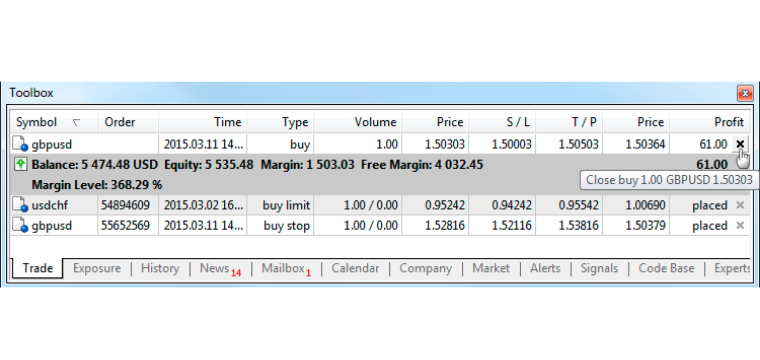
Floating profit (unrealized profit) is the value of your open positions at the current market price. It is constantly being updated with each tick and appears in the Trade tab while your open positions are open. Meanwhile, realized profit is different, as it can only be created by closing a position and will be stored permanently in the Account History tab.
Here is how the key account figures relate to each other:
Equity here described in the tables is the number that matters most while you have open trades. It represents your true account value in real time, not just your settled cash balance. A trader with a €1,000 balance and a €200 floating loss has an equity of €800, and that is the number their broker uses to calculate margin requirements.
MT5 refreshes floating profit with every incoming price tick. On fast-moving instruments, this means your P/L display shifts constantly.
How to Show Real-Time Profit/Loss in MetaTrader 5: Quick Setup
The Trade tab inside the Toolbox panel is where MT5 centralizes all live position data, including your floating profit and loss. Getting it in front of you takes less than 60 seconds.
Press Ctrl+T to open the Toolbox panel, or go to View in the top menu and click Toolbox. Once the panel is open, click the Trade tab. You will see a table listing every open position along with entry price, volume, swap charges, and a live-updating Profit column on the far right.
If the Profit column is not showing, right-click anywhere on the column header row and select the columns you want visible. MT5 lets you add, remove, and reorder columns to match your workflow.
Showing Profit in Points or Pips
By default, the Profit column shows your gain or loss in account currency. If you want to evaluate performance independently of position size, right-click anywhere inside the Trade tab and select Profit in Points. MT5 will switch the display from euros or dollars to pips, which is useful for comparing performance across trades of different sizes.
Viewing MetaTrader 5 Live P/L on Mobile

On the MT5 mobile app for iOS or Android, tap the Trade section at the bottom of the screen. Each open position displays its floating profit below the entry and current price. The mobile view updates in real time and covers all the same data as the desktop Trade tab, in a format built for smaller screens.
Show Profit/Loss Directly on the Chart
MT5 does not overlay floating profit onto the price chart, but traders have more than one way to present that data on the chart view.
Algorithmic trading in MT5 is enabled by Expert Advisors (EAs), which allow traders to show their live trade information, automate risk management, and monitor open positions straight on the chart, all in real time. An MQL5-written EA can even retrieve your current floating P/L from the platform's built-in trading functions and display it as a live label or floating panel drawn on top of the chart, updated on every tick.
Indicators and Scripts for Live Profit/Loss
Beyond EAs, MT5 has a large library of community-built indicators and scripts designed to pull position data onto the chart view. The platform includes over 80 built-in technical indicators, and its open MQL5 architecture means thousands of custom tools are available through the MetaTrader Market and public repositories.
Common tools traders use for chart-based profit display include:
- Trade panel indicators showing a live dashboard with account equity, current margin level, and open P/L in one compact overlay.
- Position size panels that calculate lot size and risk alongside the live profit or loss for each open trade.
- Floating P/L labels attached directly to the entry price line of each position on the chart.
- Multi-position dashboard scripts that aggregate and display total profit across all currently open trades.
Lines Profit Loss Indicator is one of the most widely used free tools for chart-based P/L display places horizontal lines at your entry price and the current market price, with a floating label updating live to show both the currency profit and pip value for that position. As price moves, the label follows it. It is a clean, distraction-free solution for traders who want position data visible without switching panels.
How to Manage Live Positions
Now that you are clear about how to show real-time profit/loss in MetaTrader 5, managing open positions effectively becomes the next priority. One of the most effective techniques for managing live profit is closing part of a position (partial booking) rather than all of it. MT5 supports partial closes natively, and partial booking is a straightforward process.
Partial Close and Capturing Partial Profits
Right-click on any open position in the Trade tab, and choose Close Position. In the appearing volume field, enter less than your complete position size. If you are in a 1.0 lot position and recognize the opportunity to lock in half of your profit, you would enter 0.5 lots. The remaining half of the lots remains open, and MT5 recalculates its floating P/L immediately using this new size.
Partial exits allow traders to secure gains while still maintaining exposure to a trend in motion. The Trade tab reflects the volume and floating profit of the remaining part immediately after a partial close is performed. This is a technique used primarily by CFD traders managing multiple open positions at the same time on the most volatile markets.
How to Put Trailing Stops and Profit Targets
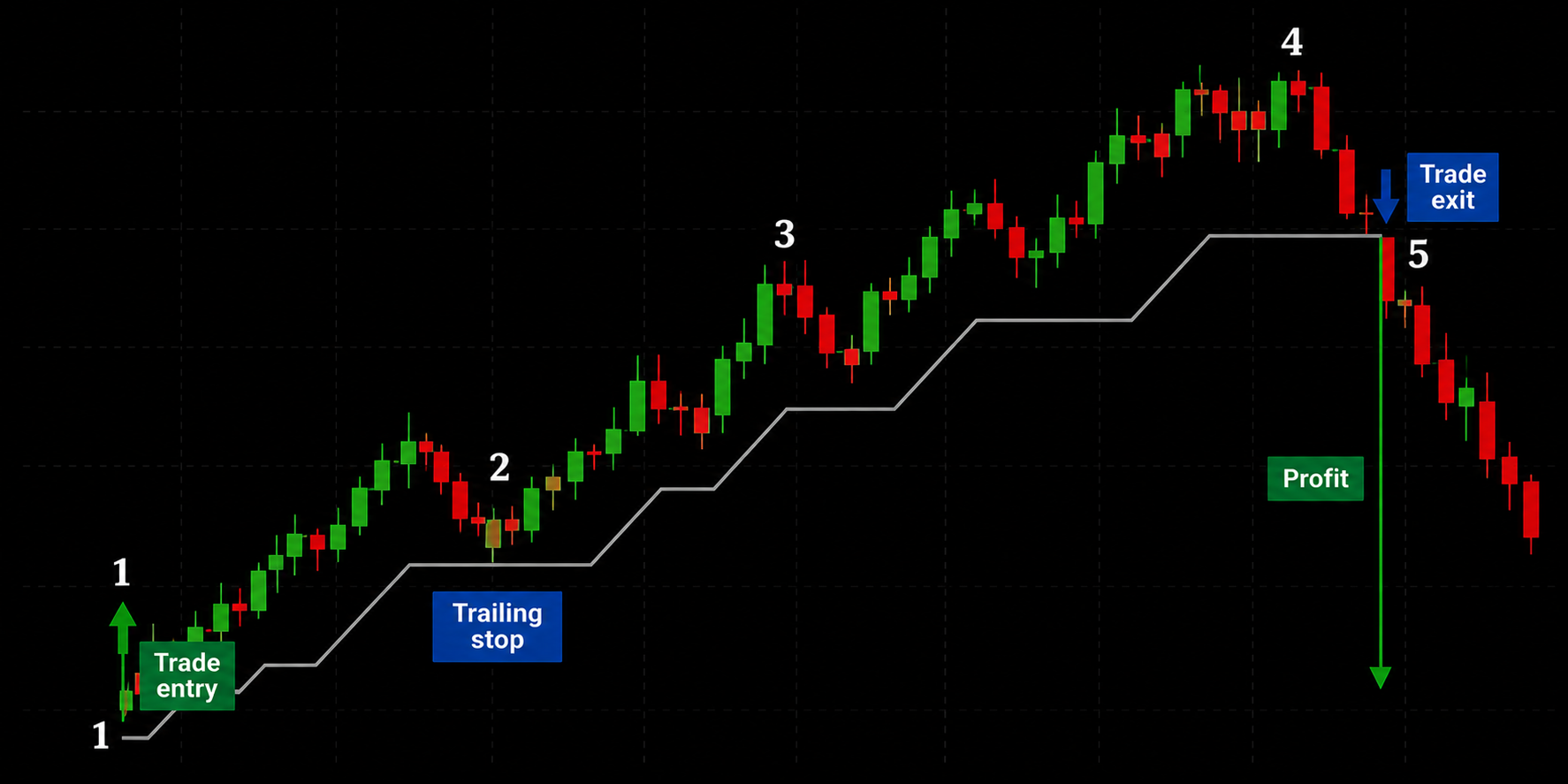
One way to manage trades is to watch your P/L manually and decide when to get out. Automating those exits based on set conditions is another method. MT5 provides this feature while MT4 does not.
A Take Profit order is a request for MT5 to automatically close your position when price reaches the target you set in advance when opening the position, letting you step away from the screen while still capturing your target profit.
Meanwhile, a trailing stop is more dynamic: it follows price as a trade moves in your favor, locks in progressively higher profit, and triggers a close if price reverses beyond a defined distance. Both are available by right-clicking any open position in the Trade tab and selecting Modify or Delete Order.
How to Set Clear Profit Targets
Every trading setup has a different strategy for profit taking, and studying your setup in depth gives you a clear set of rules for setting profit targets.
For example, most systematic traders who trade very low timeframes set Take Profit using a minimum risk-reward ratio of 1:2 or 1:3, meaning the potential gain is at least twice or thrice the potential loss on the trade.

Another example of setting a profit target is a distance-based method. The Average True Range (ATR) indicator measures average price volatility over a selected period and gives a data-driven baseline for how far price typically travels. Setting a Take Profit target at one or two ATR distances, rather than a round number or intuitive guess, aligns your expectation with actual market behavior.
MT5 includes ATR among its 80-plus built-in indicators, so this analysis is available without installing anything additional.
Also, targets placed near confirmed support and resistance levels tend to be more reliable than those placed at arbitrary distances. Experienced traders always check the higher timeframe structure before setting Take Profit.
When Should You Adjust Your Profit Target?
Adjusting a profit target entirely depends upon your strategy. Scalpers have very little time between entering and exiting a trade, so they must react quickly; meanwhile, a swing trader can wait days before adjusting his profit target depending upon the price action of the move.
Some technical triggers for moving a target include a confirmed breakout above a major resistance zone, a trend continuation signal on the higher timeframe, or a shift in market structure that suggests the original target was set too conservatively. What does not justify moving a target is watching floating profit shrink and extending the target in the hope of recovering more before price turns.
When price approaches a well-established support or resistance level, floating profit often stalls or pulls back temporarily. At that point, a trader has three options: hold and let the Take Profit order trigger at its original level, tighten the trailing stop to protect most of the gain, or take a partial close and leave the remainder running. The right choice depends on trend context and market structure, not on whether the P/L number feels large or small.
Reasons Profit Isn't Updating in MetaTrader 5
If your P/L display appears frozen or shows an unexpected value, the cause is usually one of a short list of known issues, most of which resolve in under a minute.
- Market is closed: MT5 pauses P/L updates outside trading hours for instruments with limited sessions, such as stock indices or individual shares.
- No internet connection: The platform requires a live data feed; a dropped connection stops all price and profit updates immediately.
- Delayed quotes: Certain account types receive delayed pricing by default. Check the connection status indicator in the bottom right corner of the terminal window.
- Wrong tab open: Closed trade profit appears in the History tab, not the Trade tab. If you recently closed a position and cannot find it, this is where it went.
- Platform frozen: Restarting MT5 resolves most interface lockups. Your open positions remain on the MT5 broker's server and are unaffected by closing the terminal.
If the issue persists after restarting, check whether your account is connected to the correct server in the server login screen.
Final Thoughts
MT5 gives you the tools to monitor and manage your trades in real time. But the platform is only half the story. Where you trade matters just as much. If you are looking for an EU-regulated platform to put these skills into practice, Change offers access to 400+ instruments, from CFDs on stocks to crypto, with clear pricing and no hidden deposit fees. You can start from as little as €10, which makes it a practical option whether you are testing a new strategy or building out a more established trading routine.
CFDs are complex instruments and come with a high risk of losing money rapidly due to leverage. 60% of retail investor accounts lose money when trading CFDs with this provider. You should consider whether you understand how CFDs work and whether you can afford to take the high risk of losing your money.
Frequently Asked Questions (FAQs)
How do I show real-time profit and loss in MetaTrader 5?
Enable the Trade tab in the Toolbox window to view your live floating profit or loss for every open position.
Can MetaTrader 5 display profit and loss directly on the chart?
Yes, MT5 supports custom indicators and scripts that overlay real-time profit and loss information on the trading chart.
Why is my profit shown in money instead of pips in MT5?
MT5 displays profit in your account currency by default, but it can also show values in pips or points.
Does MetaTrader 5 update profit and loss automatically?
Yes, MT5 recalculates floating profit and loss in real time as market prices change while your trade remains open.
Can I monitor the total profit and loss of multiple open trades in MT5?
Yes, the Toolbox's Trade tab continuously displays the combined floating profit or loss of all your active positions.