Beginner traders, or those looking to upgrade to the latest MetaTrader version, ask how to use MetaTrader 5 (MT5). Many new traders initially find MT5 complex due to its wide range of features,, not because the platform is difficult, but because nobody walked them through it.
However, once you understand the layout and logic behind each panel, MT5 becomes one of the most capable trading environments for retail traders. In this article, we are discussing everything from installation to placing and managing your first live trade.
Key Takeaways
- MetaTrader 5 (MT5) is a multi-asset trading platform supporting forex, CFDs, stocks, commodities, and more from a single interface.
- You need a broker account to access live markets. A free demo account lets you practice with no financial risk.
What Is MetaTrader 5?
MetaTrader 5 is one of the most widely used trading platforms, offering advanced charting, 80+ indicators, a wide range of markets (depending on broker), and, including algorithmic trading via Expert Advisors (EAs) to automate trades based on pre-set strategies.
MetaTrader 4 (MT4), the predecessor to MetaTrader 5, was launched in 2005 and was originally designed primarily for forex trading. However, the upgraded MetaTrader 5 is a multi-asset platform that.
MT5 includes more order types than MT4, 21 available timeframes (compared to 9 in MT4), a built-in economic calendar, and a significantly faster strategy tester for backtesting automated systems.
The platform itself is free to download and use, and you can also use a demo account to practice trading with virtual funds before risking real capital. However, you need a live account with a regulated broker to access real markets. MT5 does not hold funds - trades are executed through your broker; it acts as the interface between you and your broker's liquidity.
Platforms like Change have integrated MetaTrader 5 to provide traders with multi-asset access from a single professional terminal. When you trade through Change, you use the same margin account you already have. There’s no need to open another account, add funds separately, or transfer money between platforms. Your account balance, available margin, and trading funds stay connected in one place, making it easier to manage your trades.
CFDs are complex instruments and come with a high risk of losing money rapidly due to leverage. 60% of retail investor accounts lose money when trading CFDs with this provider. You should consider whether you understand how CFDs work and whether you can afford to take the high risk of losing your money.
How to Use MetaTrader 5
If you already have a Change account, getting started on MetaTrader 5 is a quick process. Rather than registering a separate broker account through the MT5 platform, your credentials are generated directly inside the Change app, keeping your trading access in one place.
Follow these four steps to connect your Change account to MT5 to start trading:
Step 1: Open the Change app and navigate to settings to reset your MT5 password. This is where you generate your dedicated MT5 login credentials. You can find this in your account settings under the MT5 section.
Step 2: Tap "Get credentials" and save them immediately, as your login details will be displayed once only. Screenshot them or write them down somewhere and store them securely before closing the screen, they cannot be retrieved again without resetting.
Step 3: Download MetaTrader 5 on your preferred device. Install the platform on a desktop (Windows or macOS) or download the MetaTrader 5 app from the App Store or Google Play.
Step 4: Log in using the credentials from the Change app. Open MT5, select File > Login to Trade Account (desktop) or Settings > New Account (mobile), search for Change in the broker list, and enter your account number and password.
Setting up your MT5 platform and starting trading is the first part of the process but understanding how the platform works and having a trading strategy is equally important.
Understanding the MetaTrader 5 Interface
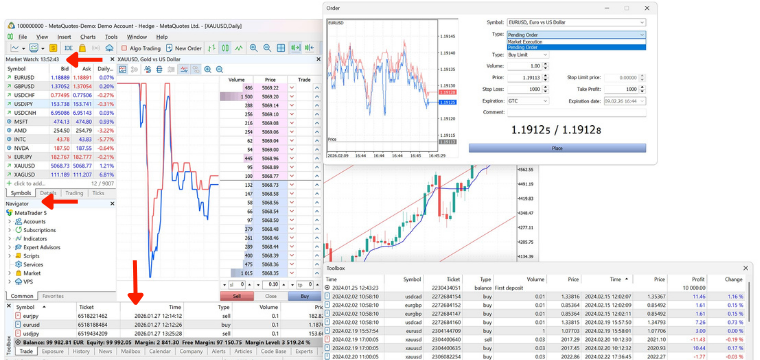
The MetaTrader 5 interface is built around four core panels, which are essential for navigating the platform. Understanding these panels makes it much easier to use MT5 effectively.
Market Watch is the first to catch your eye, as it shows the watchlist and the bid and ask. You just have to right-click anywhere in the panel to add or remove instruments. You can drag any symbol from Market Watch directly onto an open chart to switch instruments instantly.
Just below remains the Navigator, which gives you access to your connected accounts, a full library of built-in technical indicators, trading scripts, and Expert Advisors (automated trading programs). Expanding the Indicators folder lets you browse and apply indicators directly to charts.
The Toolbox is where you are going to actively manage trades. It shows your open positions, pending orders, account balance, equity, margin, and full trading history. This is also where you can monitor your margin level, if it drops too low, MT5 positions may be automatically closed (margin call/stop-out), depending on your broker’s rules.
How to Open Your First Chart
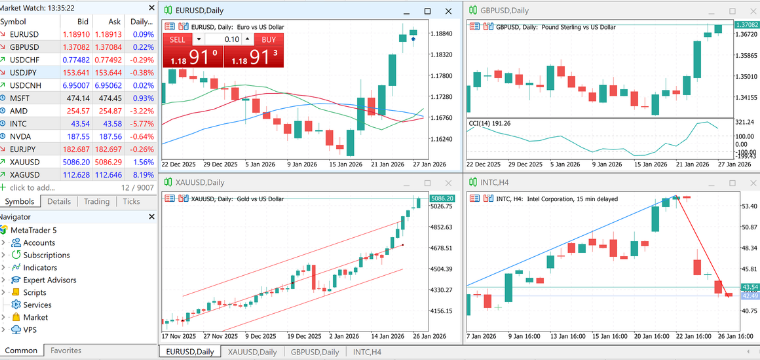
To open a chart in MetaTrader 5, right-click on any instrument in the Market Watch panel and select Chart Window. The chart will open in the main area of the platform.
Once the chart is open, there are several ways to customise your view:
- Timeframe: Click the timeframe buttons at the top of the chart (M1, M5, M15, M30, H1, H4, D1, W1, MN) to change the candle period.
- Chart type: Right-click on the chart and select Properties to switch between candlesticks, bars, or a line chart.
- Zoom: Use the scroll wheel on your mouse to zoom in and out on the price history.
- Multiple charts: Use File > New Chart or the Market Watch panel to open additional charts Arrange them using the Window menu at the top of the screen.
Candlestick charts are the most commonly used chart type among traders. Each candle represents a defined time period and shows the open, close, high, and low price for that period.
How to Add Technical Indicators
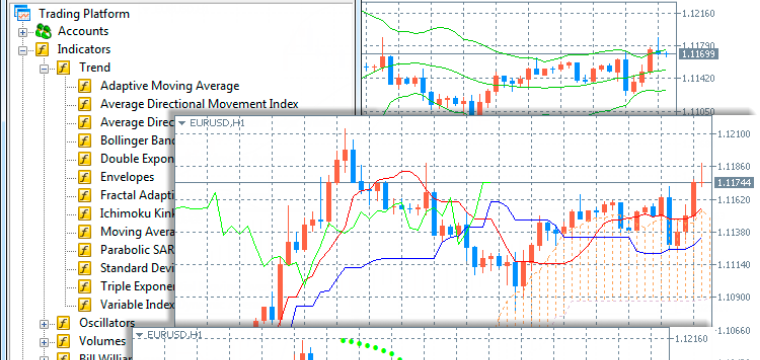
To add a technical indicator in MT5, click Insert > Indicators in the top menu bar, then select your chosen indicator from the category list. Alternatively, open the Navigator panel, expand the Indicators folder, and drag the indicator directly onto a chart.
MT5 includes over 80 built-in indicators. The most commonly used include:
- Moving Averages (MA): smooth price data to identify trend direction
- Relative Strength Index (RSI): measures momentum and identifies overbought/oversold conditions
- Bollinger Bands: show price volatility and potential breakout zones
- MACD: tracks changes in trend strength and momentum
- Stochastic Oscillator: compares closing prices to a price range over a given period
Once an indicator is applied to a chart, right-click the indicator and select Properties to adjust settings. You can adjust the period, colors, and calculation method to match your strategy. Indicators can be removed at any time by right-clicking on them and selecting Delete Indicator.
How to Place Your First Trade on MetaTrader 5
Placing an order in MT5 is fairly simple. You can open the New Order window by pressing F9, clicking the New Order button in the toolbar, or right-clicking on a chart and selecting Trading > New Order. From there, set your instrument, lot size, Stop Loss, Take Profit, and execution type, then confirm.
Follow these steps in order for a clean first execution:
- Open the New Order window: Press F9 or click New Order in the main toolbar.
- Select the instrument: choose the forex pair, CFD, stock, or commodity you want to trade.
- Set the volume (lot size): Enter your desired lot size; a standard lot typically equals 100,000 units in forex (may vary by instrument), and micro lots (0.01) allow smaller exposure.
- Set a Stop Loss: Enter the price level at which the trade will close automatically if the market moves against you.
- Set a Take Profit: Enter the price target at which the trade will close in profit.
- Choose execution type: Select Market Execution to trade at the current available price.
- Click Buy by Market or Sell by Market: The blue button goes long (buy); the red button goes short (sell).
- Confirm the order: An order confirmation will appear. Review the details and click OK.
- Monitor the position: Your open trade will appear in the Trade tab of the Toolbox at the bottom of the screen.
Setting a stop-loss before entering any trade is one of the most important habits a trader can build. It defines your maximum loss upfront and removes the temptation to hold a losing position past the point where it makes sense.
Market Orders vs Pending Orders
There are two main ways to enter a position in MT5, and choosing the right one depends on whether you want to trade now or at a future price level.
A market order executes immediately at the current market price. It is the fastest way to enter a position and is ideal when you want exposure to a move that is already underway.
A pending order is a conditional instruction to open a trade only when the price reaches a level you choose in advance. It is useful when you have identified a key support or resistance zone and want to enter automatically without having to watch the screen.
MT5 supports four types of pending orders:
- Buy Limit: buy below the current price (expecting a dip before a move upward)
- Sell Limit: sell above the current price (expecting a rejection and move downward)
- Buy Stop: buy above the current price (expecting continued bullish momentum)
- Sell Stop: sell below the current price (expecting continued bearish momentum)
Understanding the instruments you are trading is just as important as understanding the order types. If you are trading CFDs, our CFD trading guide explains how contracts for difference work, including how margin and leverage affect your position size and exposure.
How to Use MetaTrader 5 on Mobile
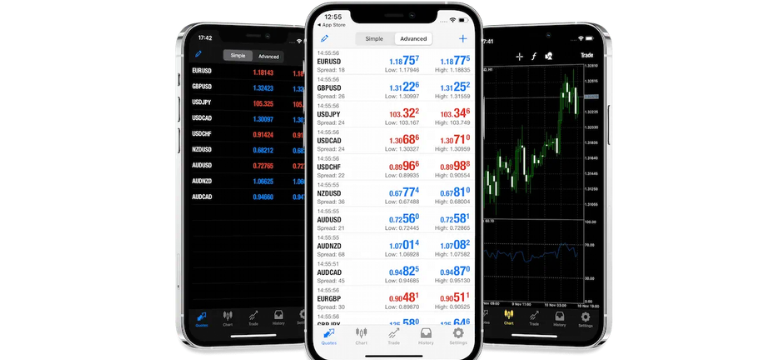
MetaTrader 5 is available as a free mobile app for both iOS and Android, and can be used with your Change account. The app includes live quotes, interactive charts, full order placement and management, and account monitoring, covering most of the functionality you need for active mobile trading.
To log in on mobile:
- Download the MetaTrader 5 app from the App Store or Google Play Store.
- Open the app and tap Settings > New Account.
- Search for your broker or server name.
- Enter your login credentials and tap Sign In.
The mobile interface is optimised for smaller screens. Charts can be pinched to zoom, indicators are applied via the chart menu, and trades are placed through the same Buy/Sell order screen as the desktop version.
The main limitation of mobile trading is that Expert Advisors (automated strategies) cannot run on the mobile app, they require the desktop platform to remain open and connected. However, for monitoring positions, managing stops, and placing manual trades, the mobile app covers most essential trading functions.
MetaTrader 5 Tips for Better Trading
Beyond avoiding common mistakes, a few practical habits will improve both your efficiency on the platform and the quality of your decision-making.
- Save chart templates: If you use the same indicators and timeframes across multiple instruments, save the setup as a template via right-click > Template > Save Template. This reapplies your full configuration to any new chart in seconds.
- Use the built-in economic calendar: Found under Tools > Economic Calendar, this live feed shows upcoming macro events and their expected market impact. Knowing when high-impact data releases are scheduled helps you avoid being caught off-guard by sudden volatility.
- Backtest strategies before going live: The Strategy Tester (accessed via View > Strategy Tester) lets you run Expert Advisors against historical data. Even if you do not use automated trading, studying how a strategy performs on past data gives you useful perspective.
- Many traders risk 1–2% of their capital per trade: This single rule, applied consistently, prevents a losing streak from wiping out a meaningful portion of your account.
- Use keyboard shortcuts. F9 opens the New Order window and F8 opens chart properties. Learning a handful of shortcuts noticeably speeds up your workflow.
Bottom Line
Understanding how MetaTrader 5 works is a crucial part of your overall trading setup, many beginners overlook the basics, which can lead to inconsistent results.
Brokers like Change support MT5, so you can use everything covered in this guide- charts, indicators, pending orders, Stop Loss, and one-click trading- through a regulated, account. Trade forex, CFDs, commodities, and 90+ cryptocurrencies, with low minimums starting from just €10 and zero deposit fees.
Frequently Asked Questions (FAQs)
Is MetaTrader 5 free to use?
Yes, MetaTrader 5 is free to download, but trading requires an account with a broker.
Can beginners use MetaTrader 5?
Yes, MetaTrader 5 has a powerful interface that may require some initial learning and offers built-in tools that can support beginners once they understand the basics.
How do I place a trade on MetaTrader 5?
Open the order window, choose your trade settings, and click Buy or Sell to execute the order.
Can I use MetaTrader 5 on my phone?
Yes, MetaTrader 5 is available for Android and iOS with most desktop trading features.
Can you open a Demo Account with MT5?
Yes, you can trade a demo account with MetaTrader 5.
What is the difference between MetaTrader 4 and MetaTrader 5?
MetaTrader 5 offers more order types, additional timeframes, more indicators, and supports more asset classes than MT4.